
Google Search Console is Google's free tool for seeing how your website performs in Google Search: which queries show your pages, how often people click, which pages are indexed and what is blocking the rest. If you work on SEO, it is the one data source that comes directly from Google about organic search.
This guide covers what Google Search Console is, how to set it up and verify your site, how to read the Performance report (clicks, impressions, CTR and average position), the indexing tools, data limits, and how to present the numbers to a client.
What is Google Search Console?
Google Search Console is a free service from Google that measures your site's search traffic and performance, helps you fix indexing problems and alerts you to issues Google finds on your pages. It used to be called Google Webmaster Tools, which is why people still search for "webmaster tools search console".
You don't need Search Console for your site to appear on Google. You need it to know how it appears. In the reports we build for clients, Search Console is the source for every number that describes visibility before the visit: impressions, clicks, queries and rankings. Analytics tools only start counting once someone lands on the site.
How to set up Google Search Console
Setting up Google Search Console takes three steps: add a property, verify that you own it, and submit a sitemap.
Domain property vs URL-prefix property
A property is the site, or part of a site, that you want to track. Google offers two types, described in its help article on adding a property.
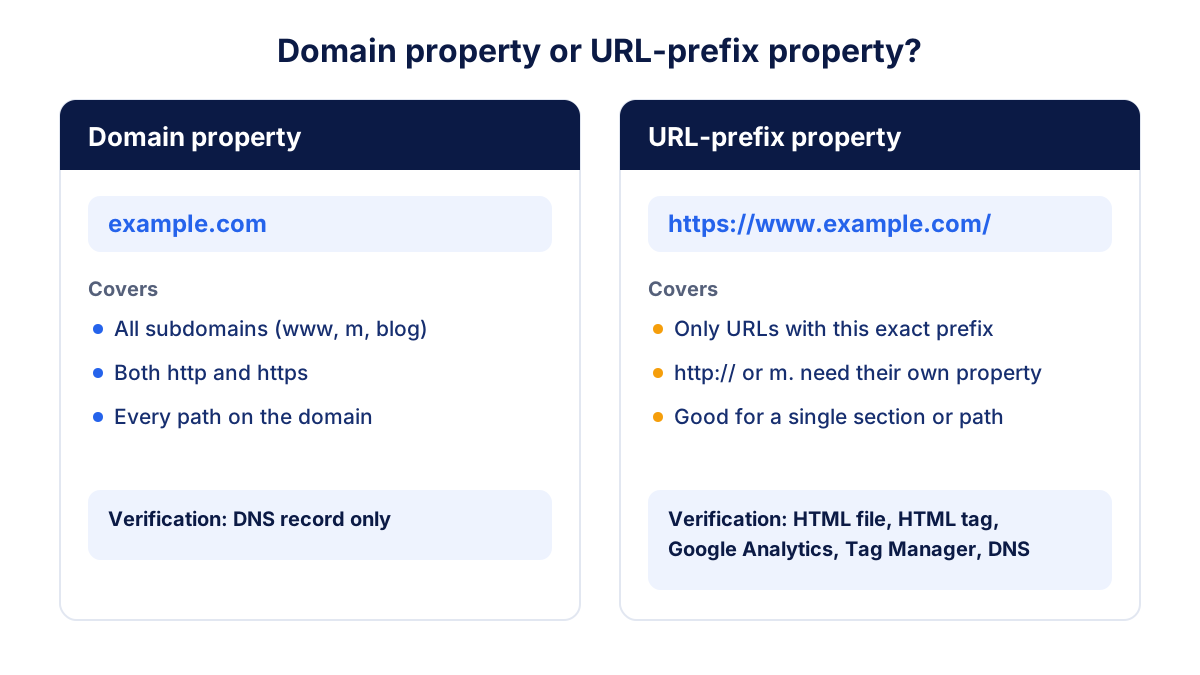
- Domain property (
example.com): includes all subdomains, both http and https, and every path. It can only be verified with a DNS record. - URL-prefix property (
https://www.example.com/): includes only URLs that start with that exact prefix, protocol included.http://example.com/orhttps://m.example.com/would need their own property.
For most sites, a Domain property is the better default because nothing falls outside it. Add URL-prefix properties on top if you want to isolate a section such as /blog/.
Verification methods
Verification proves to Google that you control the site. For URL-prefix properties you can choose between uploading an HTML file, adding an HTML meta tag, using your Google Analytics or Google Tag Manager code, or adding a DNS record at your domain provider. Sites hosted on Google Sites or Blogger can be verified through that account.
Keep the verification token in place after it succeeds. Search Console checks it periodically, and if the file, tag or DNS record disappears, you lose access after a grace period. Several people can verify the same property, and adding a second method is a sensible backup.
Submit a sitemap
Once verified, open the Sitemaps report, enter the URL of your XML sitemap (often /sitemap.xml) and submit it. The report shows whether Google could read the file and how many URLs it discovered. A sitemap doesn't guarantee indexing, but it helps Google find pages, especially new ones or pages with few internal links.
Performance report: clicks, impressions, CTR and average position
The Performance report is where you will spend most of your time. It shows four metrics over time and breaks them down by query, page, country, device, search appearance and date. Google defines the metrics in its help article on how metrics are calculated.
| Metric | Google's definition, in short | How to read it |
|---|---|---|
| Clicks | How often someone clicked a link from Google to your site | The traffic Google Search sends you |
| Impressions | How often someone saw a link to your site on Google | Counted when the result is on the current results page, even if not scrolled into view (carousels are an exception) |
| CTR | Clicks ÷ impressions | How attractive your result is for that query |
| Average position | Average of the topmost position your site held in results | Where you appear, not how much traffic you get |
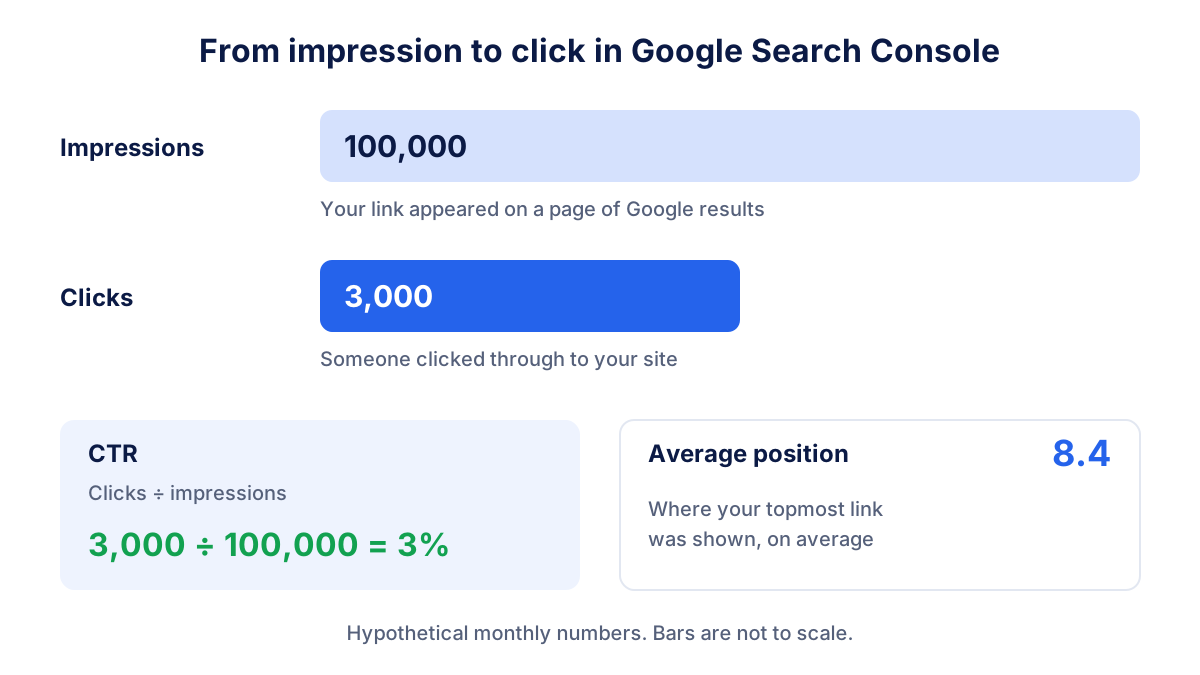
A hypothetical example: 100,000 impressions and 3,000 clicks in a month give CTR = 3,000 ÷ 100,000 = 3%. Whether 3% is good depends on position, query type and the features on the results page. Our guide to CTR and what a good click-through rate looks like goes into benchmarks.
How average position is calculated
Average position is the metric people misread most often. For each query, Search Console takes the topmost position of any link to your site, then averages those values across all the queries where you had an impression.
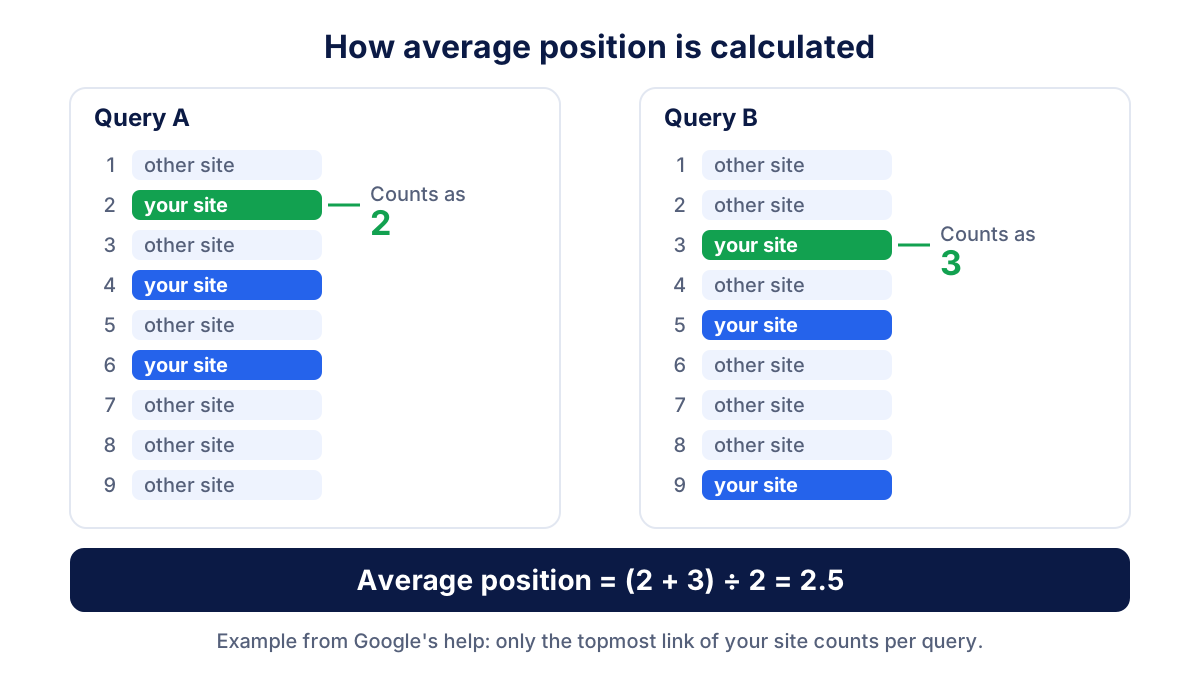
Google's own example: one query shows your site at positions 2, 4 and 6, so it counts as 2. Another query shows it at 3, 5 and 9, so it counts as 3. The average position is 2.5. A position is recorded only when there is an impression.
Aggregation matters too. Data grouped by query, country, device or date is aggregated by property, so two links to your site on the same results page count as one impression. Data grouped by page is aggregated by page, so each URL is counted separately. That is why totals on the Pages tab can be higher than the chart.
Filters and comparisons
Every filter applies to the chart and the table: search type (web, image, video, news), date range, query, page, country, device and search appearance. Query and page filters accept "containing", "not containing", exact matches and regular expressions, which is handy for separating brand from non-brand queries.
The Compare option puts two date ranges, two countries or two devices side by side. Compare the last 28 days with the previous period for short changes, and with the same period last year for seasonal sites.
Page indexing report and URL Inspection tool
The Page indexing report shows how many of your pages are indexed and lists the reasons the others are not: a noindex tag, a redirect, a 404, a duplicate where Google picked another canonical, or a page that was crawled but not indexed yet. Not every "not indexed" URL is a problem. Redirects and intentional noindex pages belong there.
The URL Inspection tool checks one URL at a time. It tells you whether the URL is on Google, when it was last crawled, which canonical Google selected and whether structured data was detected. A live test checks the current version, and Request indexing asks Google to recrawl a page you have just updated. Requests have a quota and don't guarantee indexing, so use them for important pages only.
Core Web Vitals and HTTPS reports
The Core Web Vitals report groups your URLs as good, needs improvement or poor for loading (LCP), responsiveness (INP) and visual stability (CLS), separately for mobile and desktop. The data comes from real Chrome users, so low-traffic pages may not appear. The HTTPS report counts how many indexed URLs are served over HTTPS and why others are not.
Links report
The Links report lists your most linked pages, the top sites linking to you, the most common link text and your most internally linked pages. It shows a sample rather than every link, so it is useful for trends and spotting odd patterns, less so for a complete backlink audit.
Google Search Console data limits
A few limits explain most "the numbers don't add up" questions:
- 16 months of history. The Performance report goes back up to 16 months. Export data or connect a reporting tool if you need more.
- Anonymized queries. Queries searched by very few people are hidden to protect privacy. They count in the chart totals but don't appear in the query table.
- 1,000 rows in the table. The interface shows at most 1,000 rows, so long-tail rows are missing from the table but included in the totals. The API and bulk export give more.
- Pacific Time and delay. Daily data is labelled in Pacific Time, and fresh data is preliminary for the first days.
Search Console vs GA4 and Bing Webmaster Tools
Why Search Console clicks don't match GA4 sessions
Search Console counts clicks on Google results. GA4 counts sessions recorded by its tag on your site. The two will never match exactly: GA4 misses users who block JavaScript or decline analytics cookies, can attribute sessions from other search engines to organic search, and uses your property's time zone instead of Pacific Time. Search Console, for its part, omits some rare queries. Use Search Console for visibility and queries, and GA4 for engagement and conversions after the click.
Search Console vs Bing Webmaster Tools
Bing Webmaster Tools is Microsoft's equivalent and reports the same four core metrics for Bing. It adds features Google doesn't offer for free, such as a keyword research tool, a site scan and IndexNow for fast URL submission, and Bing's index also feeds Microsoft Copilot. Our Bing Webmaster Tools guide covers the setup, which takes minutes if you import your sites from Search Console. If AI search matters to you, see also how GEO differs from SEO.
How to report Search Console data to clients
Clients rarely need every report. A monthly view with clicks, impressions, CTR and average position, compared with the previous month and the same month last year, plus the top pages and queries and any indexing issues, covers most questions. Explain once why clicks and GA4 sessions differ, so the gap doesn't come back every month. Our SEO report template and example shows a full monthly structure.
To avoid copying screenshots, give clients restricted access in Search Console settings, or pull the data into a dashboard. Klyrax connects to Search Console read-only and shows its clicks, impressions, CTR and position next to GA4 and Bing Webmaster Tools in one live report that you can also export to PDF or PowerPoint.
Common Google Search Console mistakes
- Tracking only one version of the site. A URL-prefix property for
https://www.misses traffic on other subdomains. Use a Domain property. - Removing the verification token. A new theme or a DNS cleanup can delete it and cost you access.
- Reading average position on its own. New impressions on page two can lower average position while clicks grow.
- Adding up table rows. Anonymized queries and the 1,000-row limit mean table rows rarely sum to the chart total.
- Expecting clicks to equal sessions. They measure different things in different tools.
- Spamming Request indexing. It has a quota and doesn't speed up pages Google has decided not to index.
- Sharing the owner login. Add users with the right permission level instead, and remove them when a project ends.
Frequently asked questions
What is Google Search Console used for?
Google Search Console is used to monitor and fix how a website appears in Google Search. It reports clicks, impressions, CTR and average position by query, page, country and device, shows which pages are indexed and why others are not, lets you submit sitemaps and inspect single URLs, and flags issues with Core Web Vitals, HTTPS, security and manual actions. It is free for any site owner.
Is Google Search Console free?
Yes. Google Search Console is completely free. You need a Google account and the ability to verify that you own or manage the site, for example by adding a DNS record or uploading an HTML file. There are no paid plans, and the Search Console API that reporting tools use to read your data is also free within Google's usage limits.
How is average position calculated in Search Console?
For each query, Search Console takes the topmost position where a link to your site appeared, then averages that value across all queries with an impression. Google's example: if one query shows your site at positions 2, 4 and 6 it counts as 2, another at 3, 5 and 9 counts as 3, so the average position is 2.5. A position is only recorded when your link gets an impression.
Why are Search Console clicks different from GA4 sessions?
Search Console counts clicks from Google Search results, while GA4 counts sessions that its tag records. GA4 only sees users whose browser runs JavaScript and, in most of Europe, who accept analytics cookies. Search Console also reports days in Pacific Time and hides some rare queries for privacy. Small or medium gaps between the two numbers are normal and expected.
How long does Google Search Console keep data?
The Performance report lets you look back up to 16 months. Older data is not available in the interface, so if you need longer history for year on year comparisons, export the data regularly or connect Search Console to a reporting tool or data warehouse that stores it. New data usually appears with a delay of a couple of days.
Should I choose a Domain property or a URL-prefix property?
Choose a Domain property in most cases: it covers every subdomain, both http and https and all paths, so no traffic is missed. It requires DNS verification. Use a URL-prefix property when you only manage one section of a site, or as an extra property to isolate a subfolder. You can have both for the same site.
All your marketing data in one report
Klyrax connects Google Ads, Meta Ads, GA4, Search Console, Bing Webmaster Tools and more in read-only mode, and turns them into client-ready reports.
Request info