
GA4, short for Google Analytics 4, is the current version of Google Analytics: a free tool that measures what people do on your website or app. GA4 records every interaction as an event, groups events into sessions and users, and turns them into reports on where visitors come from, how they engage and which actions bring results. This guide explains what GA4 is, how to set it up and which reports and metrics to watch.
What is GA4?
GA4 is an event-based analytics platform from Google that collects data from websites and apps through a single property. It replaced Universal Analytics, the previous version. According to Google's help center, standard Universal Analytics properties stopped processing data on 1 July 2023, and access to Universal Analytics data in the interface and API ended from July 2024.
The biggest change is the data model. Universal Analytics was session-based: each session contained hits of different types (pageviews, events, transactions), and goals were configured per view. In GA4 there are no hit types and no views. Every interaction is an event, and each event carries parameters that describe it.
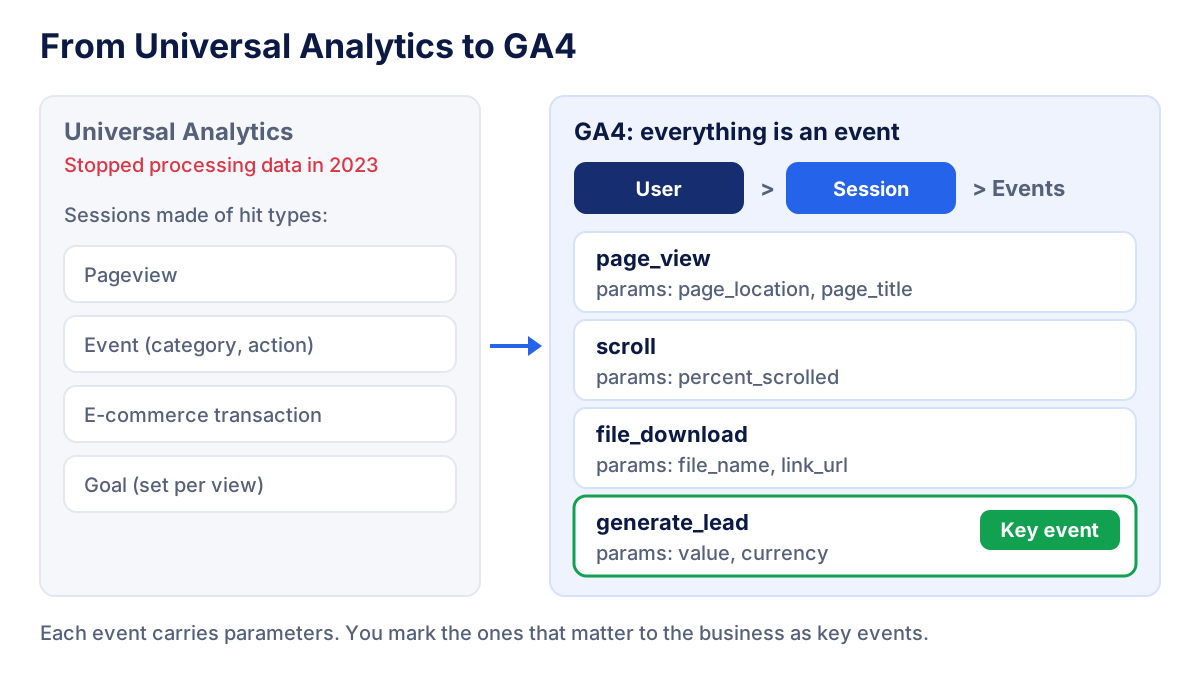
How GA4 works: the core concepts
Events and parameters
An event is any interaction GA4 records, such as page_view, scroll or purchase. Parameters add context: the page URL, the file name, the value of a purchase. GA4 has four kinds of events:
- Automatically collected events, such as
first_visitandsession_start. - Enhanced measurement events, switched on in the data stream: page views, scrolls, outbound clicks, site search, file downloads and some video and form interactions.
- Recommended events with names Google suggests, like
generate_lead,sign_uporpurchase. - Custom events you define yourself when nothing else fits.
Key events (formerly conversions)
Key events are the events you mark as important for the business. Google renamed what used to be called conversions in Analytics to key events. A conversion is now a key event that is shared with Google Ads to measure campaigns and optimize bidding. For a lead generation site, generate_lead is a typical key event; for an online shop, purchase.
Users and sessions
A session is a group of interactions within a period of time, started by the session_start event. GA4 counts users in more than one way: total users, new users and active users. In most standard reports the metric labelled "Users" is active users, so check the definition before you compare numbers from different tools.
Engaged sessions and engagement rate
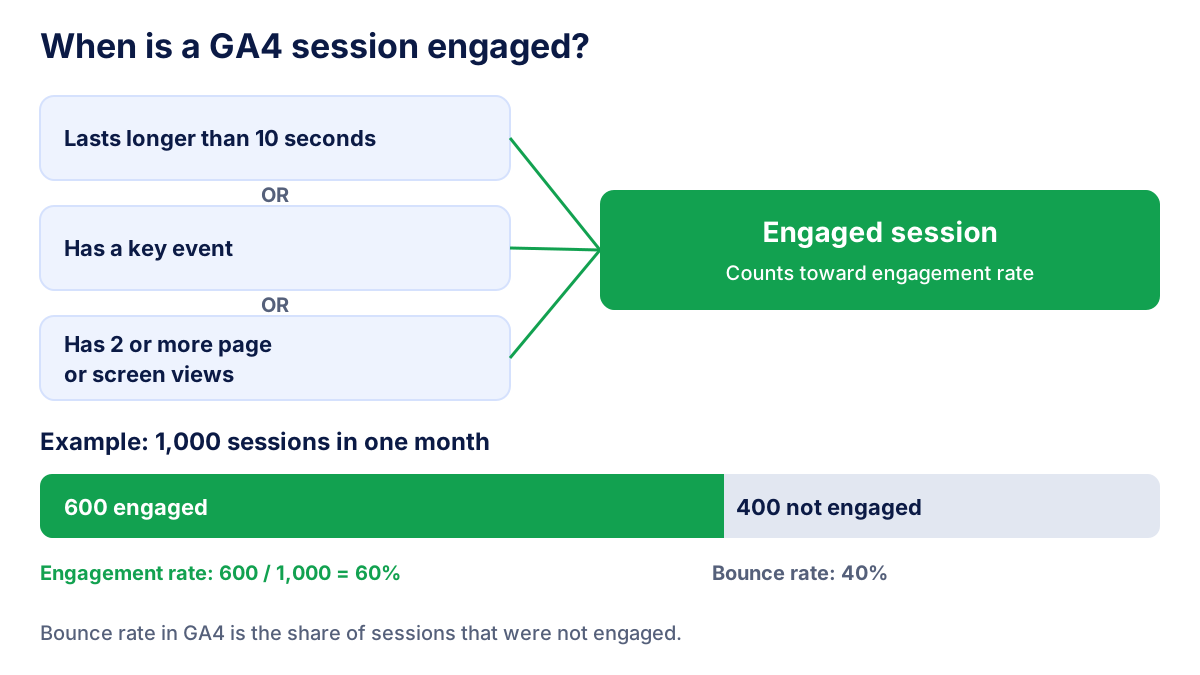
Google defines an engaged session as a session that lasts longer than 10 seconds, has a key event, or has 2 or more page or screen views. From there:
Engagement rate = engaged sessions ÷ sessions
Bounce rate in GA4 is the opposite: the percentage of sessions that were not engaged. Suppose a site records 1,000 sessions in a month and 600 of them are engaged. The engagement rate is 60% and the bounce rate is 40%.
How to set up Google Analytics 4 in 6 steps
- Create an account and a property. In Admin, create a GA4 property and set the reporting time zone and currency. Use one property per website or app (or per website plus its app).
- Add a data stream. Choose Web, enter the site URL and keep enhanced measurement on. GA4 gives you a measurement ID that starts with
G-. - Install the Google tag. Add the tag to every page directly, through Google Tag Manager or through your CMS integration. Then open the Realtime report and check that your own visit appears.
- Set up consent. In the EU, analytics cookies normally need prior consent. Connect your consent banner to Google's consent mode so the tag respects each visitor's choice. Ask your privacy adviser which setup fits your site.
- Mark key events. Decide which actions count (form submissions, sign-ups, purchases) and mark those events as key events.
- Adjust settings and links. Set data retention to 14 months, define internal traffic to filter your own team, and link Google Ads and Search Console if you use them.
The main GA4 reports
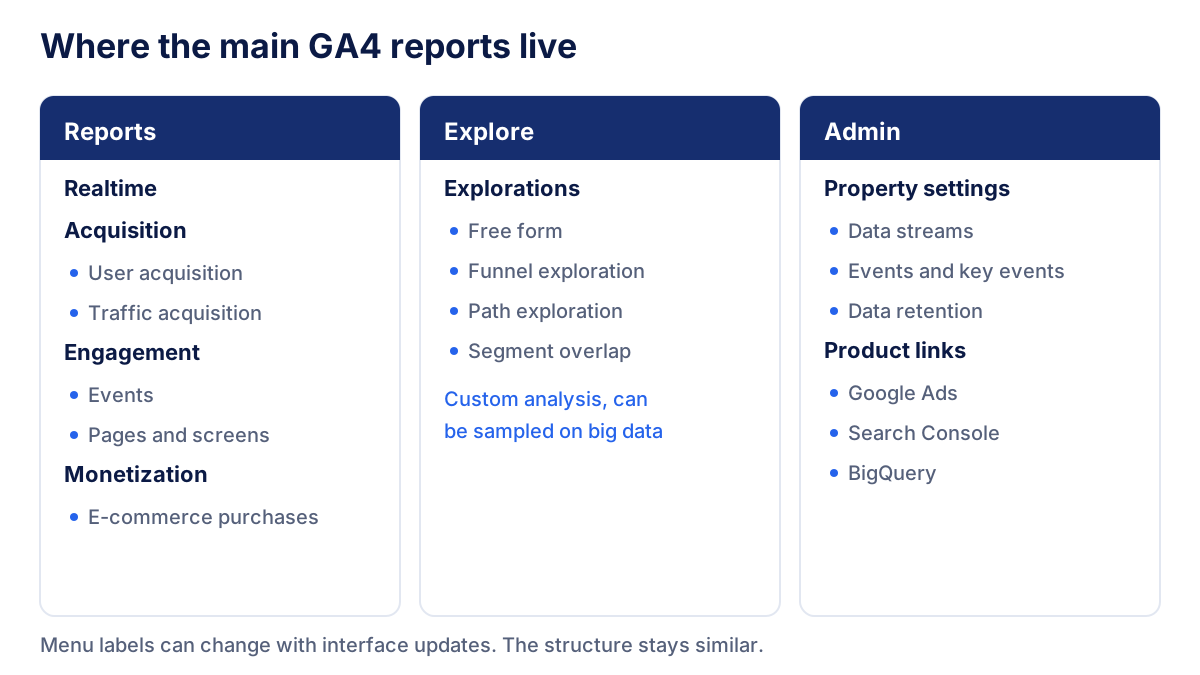
GA4 splits analysis between Reports, ready-made views of your data, and Explore, where you build custom analyses. Menu names change from time to time, but the structure stays similar.
Realtime
The Realtime report shows activity from the last 30 minutes: active users, where they came from, pages viewed, events and key events. It is the quickest way to test that a new tag or campaign link works.
Acquisition: user acquisition vs traffic acquisition
User acquisition shows where new users first came from. Traffic acquisition shows where sessions come from, for new and returning users alike. Use user acquisition to judge which channels bring new people, and traffic acquisition to see what drives visits overall. Both rely on clean UTM parameters for campaign traffic, otherwise sessions end up in the Unassigned channel.
Engagement
The Engagement reports show events and the pages and screens people view, with views, engagement time and key events per page. This is where you find which content holds attention and which pages lead to action.
Monetization
For online shops, Monetization reports cover purchases, items and revenue, provided you send e-commerce events such as purchase with their parameters. Divide key events by sessions and you get the conversion rate to compare channels.
Explorations
Explorations let you build free form tables, funnels, path analyses and segment comparisons. They are powerful for one-off questions, but they depend on the data retention setting and can be sampled on large data sets.
GA4 metrics to know
| Metric | What it measures | Use it for |
|---|---|---|
| Users (active users) | Distinct users active on the site or app in the period | Audience size |
| New users | Users who interacted for the first time | Reach of acquisition |
| Sessions | Groups of interactions started by session_start |
Traffic volume |
| Engaged sessions | Sessions over 10 seconds, with a key event or 2+ views | Quality of traffic |
| Engagement rate | Engaged sessions ÷ sessions | Comparing channels and pages |
| Average engagement time | Time the page or app was in focus, averaged | Content performance |
| Key events | Count of events marked as key events | Business results |
| Session key event rate | Share of sessions with at least one key event | Conversion efficiency |
| Total revenue | Revenue from purchases and other sources | E-commerce results |
Data retention, thresholds and sampling
Data retention in a standard property can be 2 or 14 months. According to Google's documentation on data retention, the setting only affects explorations and funnel reports, not the standard aggregated reports. Choose 14 months on day one, because a later change does not bring back data that has already expired.
Data thresholds hide rows when a report could let someone infer the identity of individual users, for example with demographic data or small numbers of users. You cannot switch them off; a wider date range often helps.
Sampling can apply when an exploration exceeds the property's processing limits. The data quality icon on the report tells you when a result is based on a sample.
GA4 and GDPR
GA4 sets first-party cookies, so in the EU it normally needs prior consent, a clear privacy notice and careful settings. Without consent part of your traffic is missing or estimated, and GA4 numbers will be lower than server-side counts. If you need complete traffic figures without cookies, read our comparison of Umami analytics and Google Analytics. None of this is legal advice.
How to build a client report from GA4
GA4's interface is built for analysts, not for clients who open a report once a month. A good client report picks a handful of metrics, explains them in plain words and shows them next to the other channels.
- Start from business goals. Sessions by channel, engaged sessions, key events and revenue usually answer what the client asks.
- Compare periods. Month over month and year over year, with the same definitions every time.
- Add context from other sources. Organic search clicks from Google Search Console, ad spend from the ad platforms.
- Write two or three lines of comment. What changed, why, what you will do next.
You can build this in Looker Studio with the GA4 connector, or use a reporting tool. In the reports we build for clients we connect GA4 to Klyrax in read-only mode, so GA4, Search Console and the ad platforms sit in one live dashboard that can be shared as a link or exported to PDF and PowerPoint.
Common GA4 mistakes
- Leaving data retention at 2 months. Explorations on last year's data stop working.
- No key events. Without them GA4 reports traffic but not results.
- Too many key events. Marking
page_vieworscrollas key events inflates results and makes every session engaged. - Inconsistent UTM tags.
Facebook,facebookandfbbecome three sources, and unknown mediums fall into Unassigned. - Not filtering internal traffic. Your team's visits distort small sites.
- Comparing GA4 with Universal Analytics one to one. Users, sessions and bounce rate are defined differently.
- Ignoring consent. Tags that fire before consent create legal risk; tags without consent mode lose data without telling you.
Set up these basics once and GA4 becomes a reliable source for every report you send.
Frequently asked questions
What is GA4 in simple terms?
GA4 is Google's free analytics tool for websites and apps. A small tag on your site sends events to Google Analytics each time someone views a page, scrolls, downloads a file or fills in a form. GA4 groups those events into users and sessions and shows where visitors come from, what they do and which actions lead to leads or sales.
What is the difference between GA4 and Universal Analytics?
Universal Analytics was built on sessions and separate hit types such as pageviews and events, with goals set per view. GA4 records everything as events with parameters and has no views. Metrics changed too: bounce rate in GA4 is the share of sessions that were not engaged. Standard Universal Analytics properties stopped processing data on 1 July 2023.
What are key events in GA4?
Key events are the events you mark as important for your business, for example generate_lead, sign_up or purchase. Google renamed them from conversions. In Google Analytics a key event is used for reporting, while a conversion is now a key event that is shared with Google Ads to measure campaigns and optimize bidding.
How long does GA4 keep data?
In a standard GA4 property you can keep user-level and event-level data for 2 or 14 months. The setting only affects explorations and funnel reports, not the standard aggregated reports. Analytics 360 properties can keep event data longer. Set retention to 14 months right after creating the property, because it does not apply retroactively to data that has already expired.
Is GA4 free?
Yes, the standard version of Google Analytics 4 is free. Google also sells Google Analytics 360, an enterprise version with higher limits, longer data retention and service level agreements. Most small and mid-sized websites, agencies' clients included, work entirely with the free version.
All your marketing data in one report
Klyrax connects Google Ads, Meta Ads, GA4, Search Console, Bing Webmaster Tools and more in read-only mode, and turns them into client-ready reports.
Request info