
To check website traffic on your own site, open the analytics tool installed on it: Google Analytics 4, Search Console or a privacy-friendly tool like Umami. For a competitor's site you cannot see real data, only estimates: a website traffic checker models the visits with a margin of error, and free signals such as Google Trends and the Meta Ad Library show what the competitor is doing. This guide covers both, and what the numbers mean for your business.
How to check your own website traffic
Your own website traffic is measured, not estimated, as long as a tool is installed correctly. Three tools cover most small and medium businesses, and they answer different questions.
| Tool | What it measures | Best for |
|---|---|---|
| Google Analytics 4 | Sessions, users, channels, pages, key events (conversions) | Full picture of every channel and of results |
| Google Search Console | Clicks, impressions, CTR and position in Google Search | Organic search and the queries that bring visits |
| Umami | Visitors, visits, page views, sources, without cookies | Simple, privacy-friendly stats |
You do not need all three. Most businesses start with GA4 and Search Console, both free. If you prefer a lighter, cookieless setup, the comparison of Umami and Google Analytics explains the trade-offs.
Website traffic in Google Analytics 4
In GA4 the main place to see traffic is the traffic acquisition report under Reports, then Acquisition. It shows sessions grouped by the session default channel group: Organic Search, Direct, Paid Search, Organic Social, Referral, Email and others. These channel groupings are rule-based definitions of your traffic sources.
The numbers to read first:
- Users: how many people (more precisely, browsers or devices) visited.
- Sessions: how many visits they made.
- Engaged sessions: sessions that lasted longer than 10 seconds, had a key event or viewed at least two pages. This is a better measure of real interest than raw sessions.
- Key events: the actions you marked as important, such as a purchase or a contact form.
The Realtime report shows activity in the last 30 minutes. It is useful to check that tracking works after a change, not to judge performance. For monthly reading, set the date range to the previous month and compare it with the same month last year. The guide on traffic sources explains each channel in detail, and the GA4 guide covers setup.
Website traffic from Google Search Console
Search Console does not measure your whole website traffic. It measures how your site performs in Google Search. The Performance report shows four metrics: clicks, impressions, average click-through rate and average position, and lets you see them by query, page, country and device.
For a business this answers precise questions: which searches bring people to the site, which pages they land on, and whether visibility is growing. If clicks fall while impressions are stable, people still see you but click less, often because of the title shown or a competitor's result. If impressions fall, you are showing up less. Our Search Console guide explains how to verify the site.
Why your traffic numbers never match
Owners often check website traffic in two tools and find two different numbers. That is normal. The main reasons:
- Different units. Search Console counts clicks from Google results, GA4 counts sessions from all channels, Umami counts visits with its own definitions.
- Consent and blockers. Tools that rely on cookies may not record visitors who refuse consent or block scripts. Cookieless tools record more of them.
- Bots and filters. Each tool filters automated traffic differently.
- Timing. A click that leaves before the page loads appears in Search Console but not in analytics.
The fix is simple: choose one main source for each number in your monthly reading, label it, and compare it only with itself over time.
How to check a competitor's website traffic
A competitor's exact website traffic is visible only to whoever runs its analytics. Everything else is an estimate. Website traffic checkers are tools that model a site's visits from indirect data: browsing panels, anonymised clickstream data, and search rankings combined with the estimated search volume of each keyword. Well-known examples include Semrush and Similarweb, and many SEO platforms offer a similar feature.
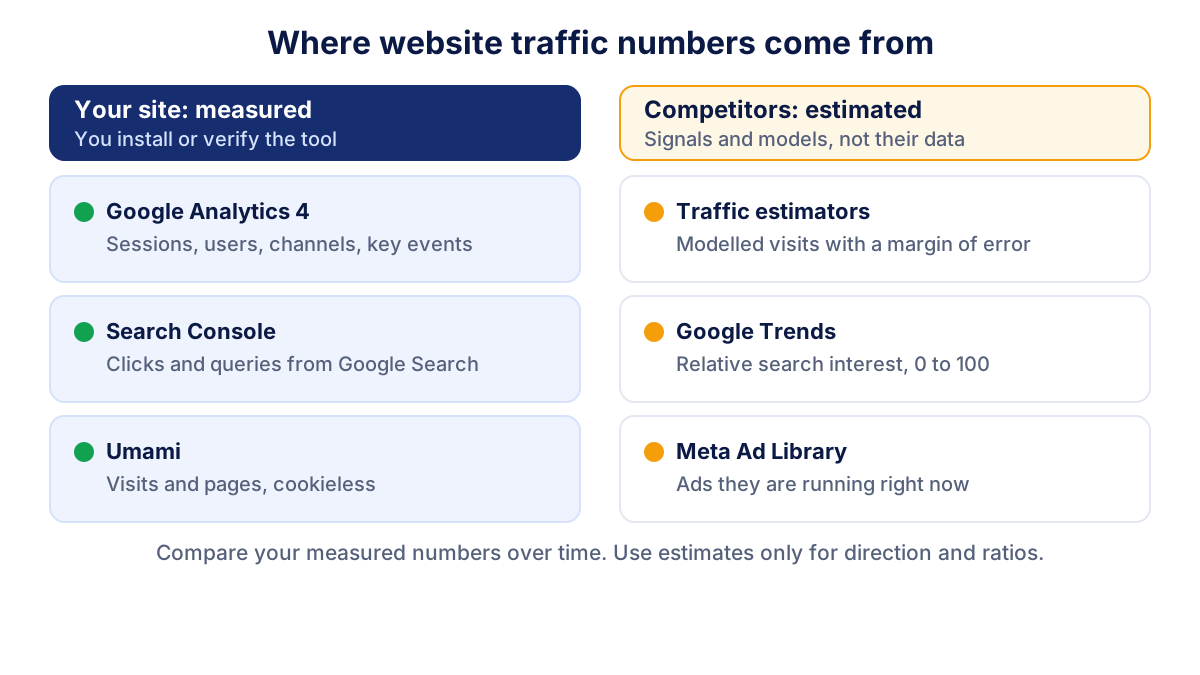
Read these estimates with care:
- Error grows as sites get smaller. A national retailer with millions of visits is estimated far better than a local plumber.
- Use one tool for every site. Two different checkers can give very different numbers for the same site. Compare competitors within the same tool.
- Test the tool on your own site. Compare its estimate with your GA4 data. If it shows 3,000 visits and you really have 9,000, apply the same doubt to competitors.
- Look at direction and ratios. "The competitor gets roughly twice our organic traffic and it is growing" is a useful conclusion. "The competitor had 14,382 visits" is not.
What a traffic estimate can tell you
Used well, a website traffic checker answers questions that matter for a business. Which competitor gets the most visits from search, and for which topics? Is a new player growing fast? Does a competitor rely mostly on ads or mostly on organic search? Which of their pages seem to attract the most visitors? These answers help you decide where to invest, for example in a service page or a guide that competitors already rank with. They do not tell you how many customers the competitor has, how much they earn or whether their traffic converts.
Free signals: Google Trends and the Meta Ad Library
Two free tools do not show traffic but say a lot about a competitor's market presence.
Google Trends shows how search interest in a term changes over time. Google explains in its Trends data FAQ that the data is a sample, normalised and scaled from 0 to 100, so it gives relative interest, not search volume. Comparing your brand name with a competitor's over 12 months shows who is attracting more attention and when. The article on Google Trends explains how to read it.
The Meta Ad Library lets anyone search the ads currently running on Facebook, Instagram and other Meta technologies. If a competitor has run the same ads for months, they probably work for them. A sudden wave of new ads often explains a jump in their traffic. Our guide to the Meta Ad Library shows how to search it.
What website traffic numbers mean for your business
Traffic is the top of the chain, not the result. A hypothetical service business with 5,000 sessions a month, half of them engaged, might receive 100 contact requests (2% of sessions) and win 20 customers (20% of requests). Doubling traffic only helps if the new visitors are the right people.
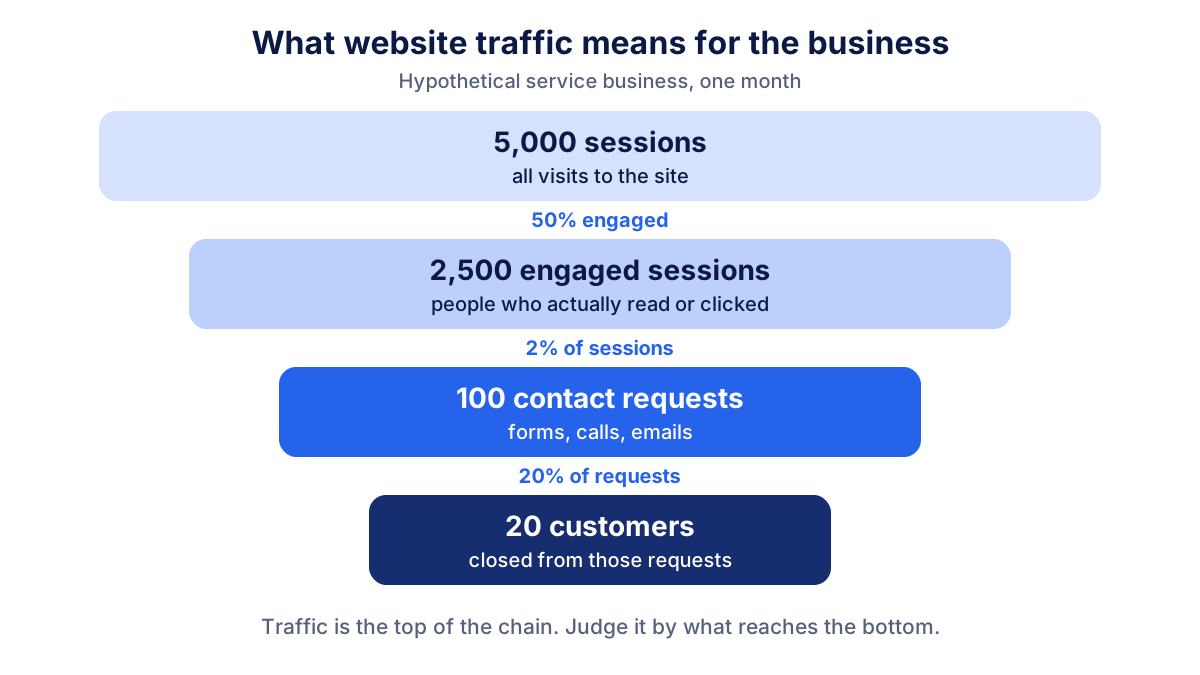
So read your traffic together with three other numbers: the share of engaged sessions, the conversion rate to leads or sales, and the results by channel. Benchmarks vary a lot by sector, country and type of site, so your own trend against last year is a better reference than any average. In Klyrax, GA4, Search Console and Umami data sit in one summary chosen for your business goal, and the monthly report explains in plain language what changed and why. Klyrax works only with the accounts you connect, so it does not estimate competitors' traffic.
Common mistakes when checking website traffic
- Treating estimates as facts. A competitor's estimated traffic is a range, not a number.
- Comparing numbers from different tools. GA4 sessions and Search Console clicks will never match.
- Watching total visits only. Traffic that never converts costs you time and often money.
- Ignoring seasonality. Compare with the same month last year before reacting to a drop.
- Forgetting tracking checks. A sudden fall to near zero usually means a tag or consent banner broke, not that customers disappeared.
The practical routine is short: check your own website traffic monthly in one or two measured sources, glance at competitors with an estimator and free signals every quarter, and always ask what the traffic turned into.
Frequently asked questions
How can I check my website traffic for free?
Install Google Analytics 4 or a cookieless tool such as Umami, then open the traffic or acquisition report to see sessions, users and where visits come from. Add Google Search Console, which is also free, to see how many clicks your site gets from Google Search and for which queries. Check the same report every month and compare periods.
Can I see exactly how much traffic a competitor's website gets?
No. Exact traffic data is only available to whoever controls the site's analytics. Website traffic checkers estimate a competitor's visits from sources such as browsing panels and search rankings, and the estimates can be far from reality, especially for small sites. Use them to compare direction and orders of magnitude, not precise numbers.
Are website traffic checkers accurate?
They are estimates, so accuracy varies by tool, country and site size. Large sites with lots of visitors are usually estimated better than small local or niche sites. A good test is to run your own site through the checker and compare the result with your Google Analytics data. The gap tells you how much to trust it.
Why do Google Analytics and Search Console show different traffic?
They measure different things. Search Console counts clicks from Google Search results only, while GA4 counts sessions from every channel and only for visitors who load the tracking code, which consent choices and ad blockers can prevent. A click that never finishes loading the page appears in Search Console but not in GA4.
What is a good amount of website traffic?
There is no universal number. A local business may do well with a few hundred visits a month if they turn into calls, while an online shop may need tens of thousands. Judge traffic by the results it brings, such as leads, sales or bookings, and by its trend against the same month last year.
See how your marketing is really doing
Klyrax connects GA4, Search Console, Google Ads, Meta Ads, your Google reviews and more in read-only mode, shows the numbers that matter for your business and writes you a plain-language report every month.
Request info