A Google review link is the official link that opens the review form of your business on Google, so a customer can leave stars and a comment in two taps. You get it, together with a printable QR code, from your Business Profile. This guide shows where to find it, how to turn it into a QR code, where and when to send it, with message templates you can copy, and what Google does not allow.
It also answers the other question people ask with the same words: where to see "my Google reviews". That can mean the reviews of your business or the reviews you wrote yourself, and the two live in different places.
What is a Google review link?
The Google review link is a URL created by Google for one specific Business Profile. Whoever opens it lands directly on the window where they choose the stars and write the review, without searching for your business or scrolling through Maps.
That small shortcut is the whole point. Asking "please review us on Google" leaves the customer to do three or four steps alone. Sending the link removes them.
The customer needs a Google Account to post the review. Any email address can be used to create one, not only Gmail.
How to get your Google review link from Business Profile
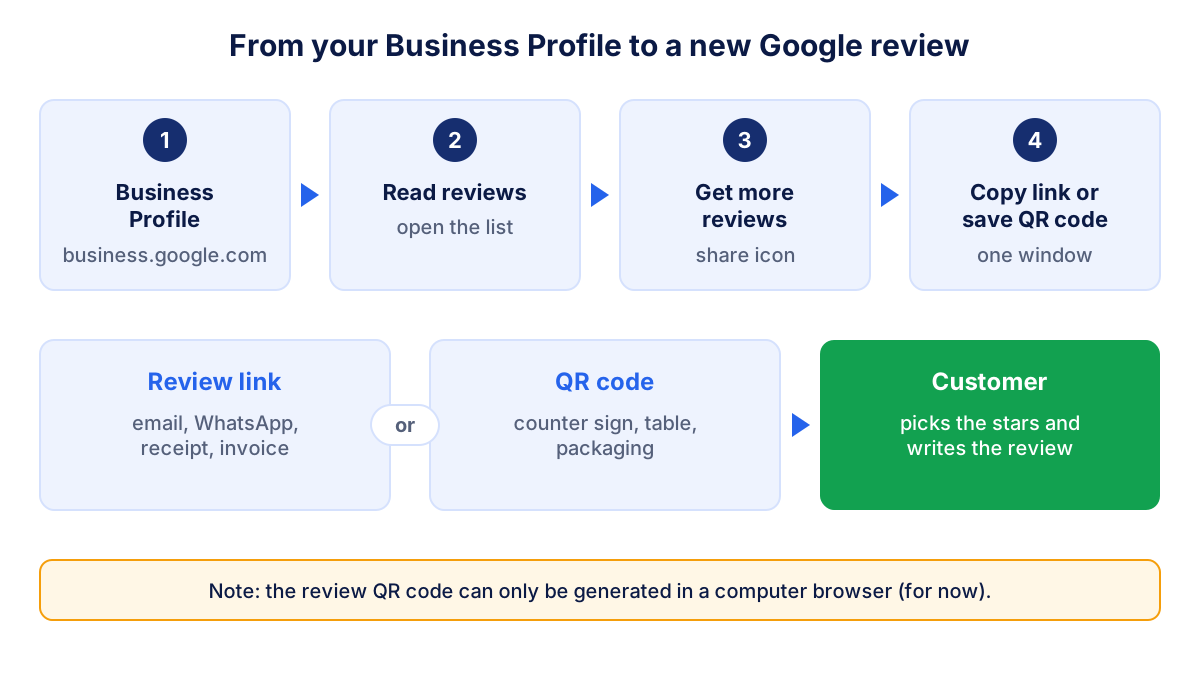
Google describes the steps in its help page on creating a review link or QR code. In short:
- Sign in with the Google Account that manages your business.
- Open your Business Profile from business.google.com.
- Select Read reviews.
- Select Get more reviews (it uses the share icon).
- Copy the link with the copy icon, or share it directly from the window.
Save the link somewhere your team can find it: in your email signature tool, in your invoicing software, in a shared note. Use the same link in every channel, so there is one thing to update if you ever need to.
If you manage several locations, each Business Profile has its own review link. Do not send customers of one shop to the profile of another: the reviews would describe the wrong place.
How to turn the review link into a QR code
You do not need a separate QR code generator. In the same Get more reviews window, Google shows a QR code next to the link. Right-click it and choose "Save image as" to download it. Google notes that review QR codes can currently be generated only in a computer browser, not on a phone, so do this step from a laptop or desktop.
A few practical tips before printing:
- Test the printed QR code with two different phones, one Android and one iPhone.
- Print it big enough to scan from arm's length, and leave white space around it.
- Write one line next to it, for example "Scan to review us on Google". A QR code with no explanation gets ignored.
- Put it where people wait or pay: the counter, the reception desk, the table, the bag.
If you use a third-party QR generator with your review link, it works the same way, but check that it encodes your link directly and does not route it through a tracking service that could stop working.
Where and when to send your Google review link
Timing matters more than the channel. Ask when the experience is fresh: when the job is finished, the order has arrived, the appointment has ended. A request that arrives three weeks later competes with everything else in the customer's inbox.
| Channel | Best moment | Practical tip |
|---|---|---|
| Thank-you email | Same day as the service or delivery | One line and the link, no other offers |
| WhatsApp or SMS | Right after the visit or the end of the job | Only to customers who already chat with you |
| Receipt or invoice | At payment | Short link or QR code at the bottom |
| Counter or table sign | While people wait or pay | QR code with one clear sentence |
| End of a chat or support ticket | When the problem is solved | Ask only after the answer, not before |
| Business card or packaging | At handover | QR code on the back |
Google itself suggests receipts, thank-you emails, the end of a chat and a printed QR code in the store, and mentions email, WhatsApp and Facebook posts as ways to send requests.
Pick two channels and make them automatic. A line in the invoice template and a QR code at the counter will work every day without anyone remembering to ask.
Google review request templates you can copy
Keep the request short, neutral and the same for everyone. Do not ask for five stars, and do not suggest what to write.
Email after a service:
Subject: Thank you for choosing us
Hi Sarah, thank you for your visit today. If you have a minute, a review on Google helps other people find us and helps us improve. Here is the link: [your review link]. Thank you, Tom from Riverside Dental
WhatsApp or SMS:
Hi Mark, thanks again for today. If you'd like to leave a quick review on Google, here is the link: [your review link]. Have a good evening, Anna
Line on the receipt or invoice:
How was your experience? Tell us on Google: [short link or QR code]
Counter sign:
Your opinion helps other customers. Scan to leave a Google review.
Personalize the name and the signature, and leave everything else plain. Customers notice a real person behind a short message more than a long, polished one.
What Google allows when you ask for reviews
Asking for reviews is allowed and encouraged by Google. How you ask is regulated by the Google Maps content policy. The points that matter most for a review link campaign:
- No incentives. No payment, discount, free product or service in exchange for a review, for changing a review or for removing a negative one.
- No review gating. You may not selectively ask only satisfied customers, or discourage negative reviews. A survey that sends only happy customers to Google breaks this rule.
- No pressure on site. The policy says businesses should not require or pressure customers to leave reviews while on the premises. A QR code on the counter is fine. Handing over your own tablet and waiting is not.
- No quotas for staff. Asking employees to collect a certain number of reviews, or reviews with specific content, is listed as manipulation.
The guide to responding to Google reviews and getting more covers the full rules, fake reviews and how to reply. If a review on your profile breaks these rules, see how to remove a Google review.
Where to see my Google reviews
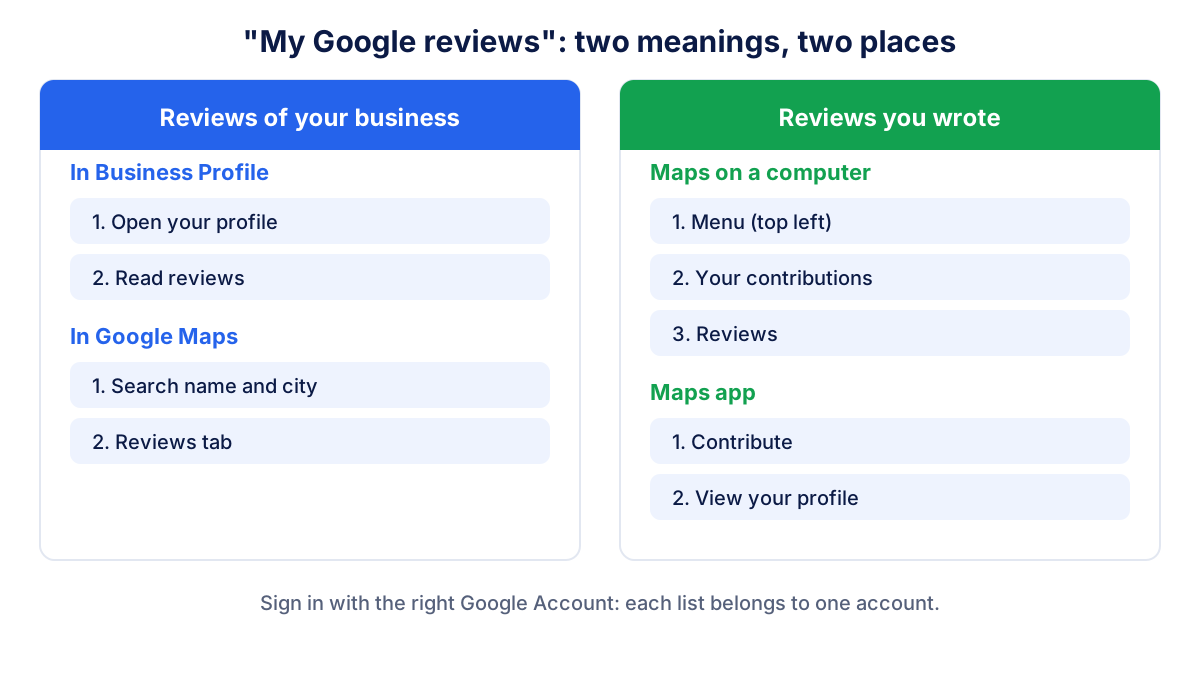
"My Google reviews" has two meanings, and Google keeps them in separate places.
Reviews of your business
To read the reviews customers left about your business, sign in with the account that manages it and use one of these paths:
- Business Profile: open your profile and select Read reviews. This is also where you reply.
- Google Maps: search your business name and city, open the profile and select the Reviews tab. This shows what any customer sees.
Check both from time to time. The second path shows how your profile looks to someone who has never visited you.
Reviews you wrote yourself
To find the reviews you wrote as a customer, Google's help page on adding, editing or deleting reviews gives these steps:
- On a computer: open Google Maps, click the Menu at the top left, then Your contributions and Reviews.
- In the Maps app on Android: tap Contribute, then View your profile, scroll and tap See all reviews.
- In the Maps app on iPhone: open the Contribute tab at the bottom, then View your profile.
From that list you can edit or delete each review with the More menu. Google notes that if you edit a review, the date of the last edit is shown as the review's date. The Contribute tab also shows how many times your reviews and photos have been viewed.
Is your review campaign working?
Sending the link is half the job. The other half is checking, every month, whether more reviews actually arrive. Four numbers are enough: new reviews in the month, total reviews, average rating and unanswered reviews.
Here is a hypothetical example. A small physiotherapy practice receives 2 to 4 new reviews a month. In April it adds the review link to the appointment confirmation email and puts a QR code at the reception desk. From April the count rises to 10 to 13 a month, and the rating stays at 4.6.
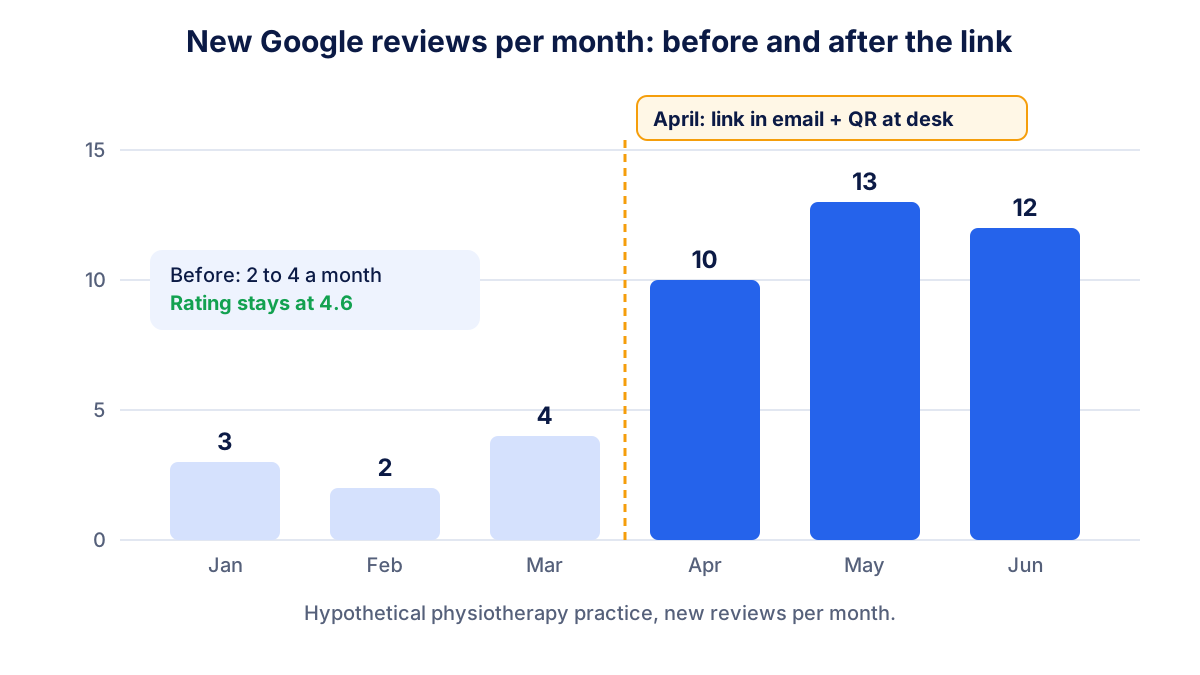
If the count does not move after two months, look at the routine before the customers: is the link really in the email template, is the QR code visible, does the team mention it? If the rating drops while the count rises, read the new reviews: they are telling you something about the service.
Klyrax reads the public data of your Google profile through its Google reviews and Maps channel: rating, number of reviews, new and unanswered reviews over time. You see these numbers next to your website data, compared with the previous month, and the monthly written report tells you in plain words whether reviews went up or down, so you know if the campaign is working. For the other levers of local visibility, read the guide to local SEO on Google Maps and the Google Business Profile guide.
Frequently asked questions
How do I get a link for Google reviews?
Sign in with the account that manages your Business Profile, open the profile on business.google.com, select Read reviews and then Get more reviews. A window opens with the link and a QR code. Select the copy icon to copy the link, or right-click the QR code to save it as an image. The link opens the review form for your business directly.
How do I make a QR code for Google reviews?
Google creates it for you. In the same Get more reviews window where you copy the review link, right-click the QR code and save the image. Google says the review QR code can currently be generated only in a computer browser, not on a phone. Print it on a counter sign, a table card or the back of a business card, and test it with two phones before printing.
How do I see my reviews on Google?
It depends on which reviews you mean. For reviews of your business, open your Business Profile and select Read reviews, or search your business in Google Maps and open the Reviews tab. For reviews you wrote as a customer, open Google Maps on a computer, go to Menu, Your contributions and Reviews. In the Maps app, tap Contribute and then View your profile.
Can I offer a discount for a Google review?
No. Google's content policy prohibits offering payment, discounts, free goods or services in exchange for a review, for changing one or for removing a negative one. Reviews posted because of an incentive can be removed. Asking only happy customers is also prohibited, so send the same link and the same message to every customer.
How many Google reviews should I ask for each month?
There is no official target. A useful rule is to ask every customer, then watch how many new reviews arrive each month compared with the months before. If you serve 100 customers a month and receive 3 reviews, the routine has room to grow. A steady flow of recent reviews matters more than one burst followed by silence.
See how your marketing is really doing
Klyrax connects GA4, Search Console, Google Ads, Meta Ads, your Google reviews and more in read-only mode, shows the numbers that matter for your business and writes you a plain-language report every month.
Request info