
The Meta Pixel is a small piece of code on your website that tells Meta what people do after they click or see your ads: which pages they view, whether they send a form, whether they buy and for how much. Without it, Meta Ads cannot count website results or learn who is likely to convert. You can check that it works in a few minutes with the free Meta Pixel Helper extension and the Test events tab in Events Manager.
This guide is for business owners, not developers. It explains what the pixel measures, how to check it yourself, what the Conversions API adds, how consent works in the EU and which questions to ask the person who installed it.
What is the Meta Pixel?
The Meta Pixel (the Facebook Pixel before the company became Meta) is a snippet of JavaScript that loads on every page of your site and sends events to Meta. Each pixel has a pixel ID, a long number that links the events to your business. In Events Manager, Meta now also groups pixel and server events under a "dataset" with the same ID, so you may see both words.
Meta's developer documentation describes the base code as the part that loads on every page and automatically sends a PageView. Other events are added on top, at the moments that matter for your business: a form sent, a product added to the cart, an order completed.
If someone else runs your ads, the pixel should still belong to your business portfolio, like the ad account. The guide to Meta Ads explains why ownership matters when you change supplier.
Which events does the Meta Pixel measure?
Meta defines a list of standard events with fixed names. Using the standard names lets Meta Ads optimize and report on them without extra setup. The ones a typical business uses:
| Event | When it should fire | Typical business |
|---|---|---|
| PageView | every page load (sent by the base code) | all |
| ViewContent | a product or service page is viewed | shops, services |
| Search | someone uses the search on your site | shops |
| AddToCart | a product is added to the cart | shops |
| InitiateCheckout | the checkout starts | shops |
| Purchase | the order is completed (thank-you page) | shops |
| Lead | a contact or quote form is sent | lead generation |
| CompleteRegistration | an account or sign-up is completed | software, events |
| Contact, Schedule | a call, chat or booking is started | local businesses |
For a Purchase, Meta's standard events reference lists value and currency as required. That is the order amount and the currency code, for example 70 and USD. Without them, Meta can count purchases but cannot calculate purchase value or ROAS.
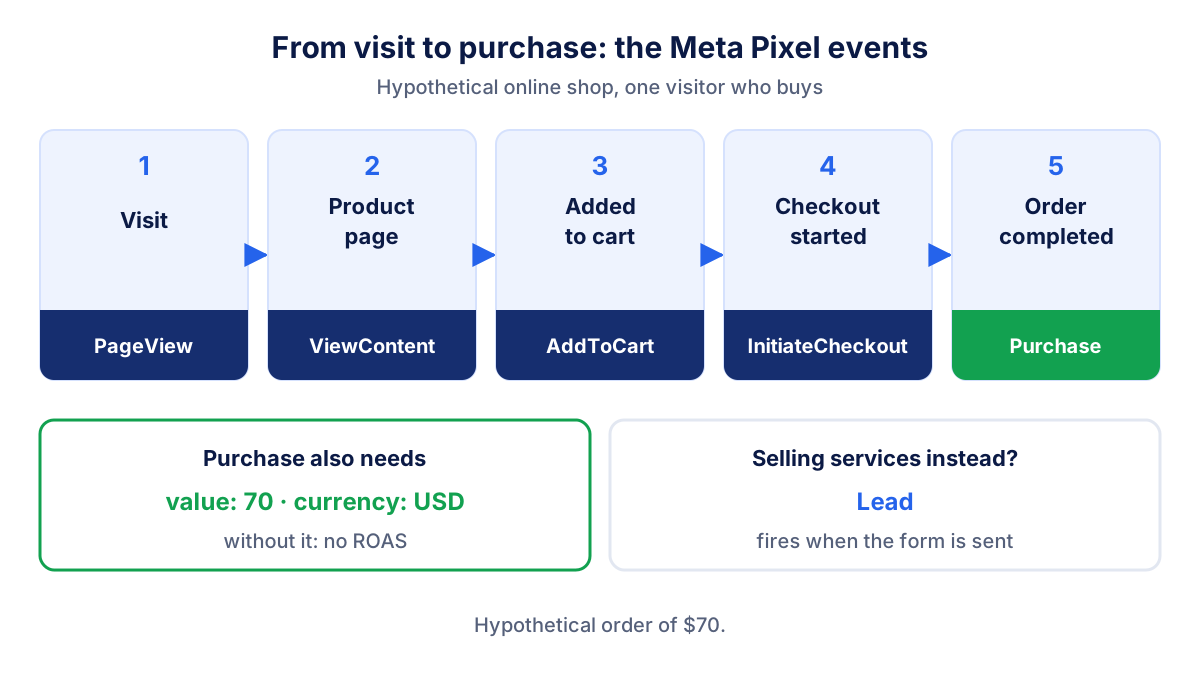
You can also create custom conversions in Events Manager, for example "PageView on /thank-you", when you cannot add a standard event. They work, but standard events are easier to compare across campaigns.
Why do Meta Ads need the pixel?
The pixel feeds three things in Meta Ads.
- Measurement. The "Results" and "Cost per result" columns in Ads Manager come from events. No Lead event, no leads in the report.
- Optimization. A campaign set to optimize for purchases looks for people similar to those who bought. It can only do that if it receives Purchase events.
- Audiences. Website visitors, cart abandoners and past buyers can become retargeting audiences, and they exist only if the pixel records them.
A hypothetical example shows the cost of a broken setup. You spend $1,000 in a month. The shop records 40 orders worth $2,800 from Meta traffic, so your real ROAS is 2.8. If the Purchase event is sent without a value, Ads Manager shows 40 purchases and no purchase value, so ROAS is blank. If Purchase fires twice per order, Ads Manager shows 80 purchases and a cost per result of $12.50 instead of $25. Both reports look fine at a glance and both are wrong.
How to check the pixel with Meta Pixel Helper
The Meta Pixel Helper is a free extension from Meta for Chrome and Edge. Meta has renamed it Meta Ads Data Advisor (formerly Meta Pixel Helper) and existing installations update automatically, according to Meta's Pixel Helper page. The checks below work without logging in.
- Install the extension from the Chrome Web Store (or Edge Add-ons) and check that the publisher is Meta.
- Turn off your ad blocker for your own site and accept marketing cookies in your banner.
- Open your home page. A badge on the extension icon means a pixel was found; no badge means no pixel on that page.
- Click the icon and check the pixel ID. It must match the ID in your Events Manager.
- Walk through the site as a customer: open a product, add it to the cart, send a test form. Each action should add the expected event.
- Open the event details for Purchase or Lead and check the parameters, especially value and currency.
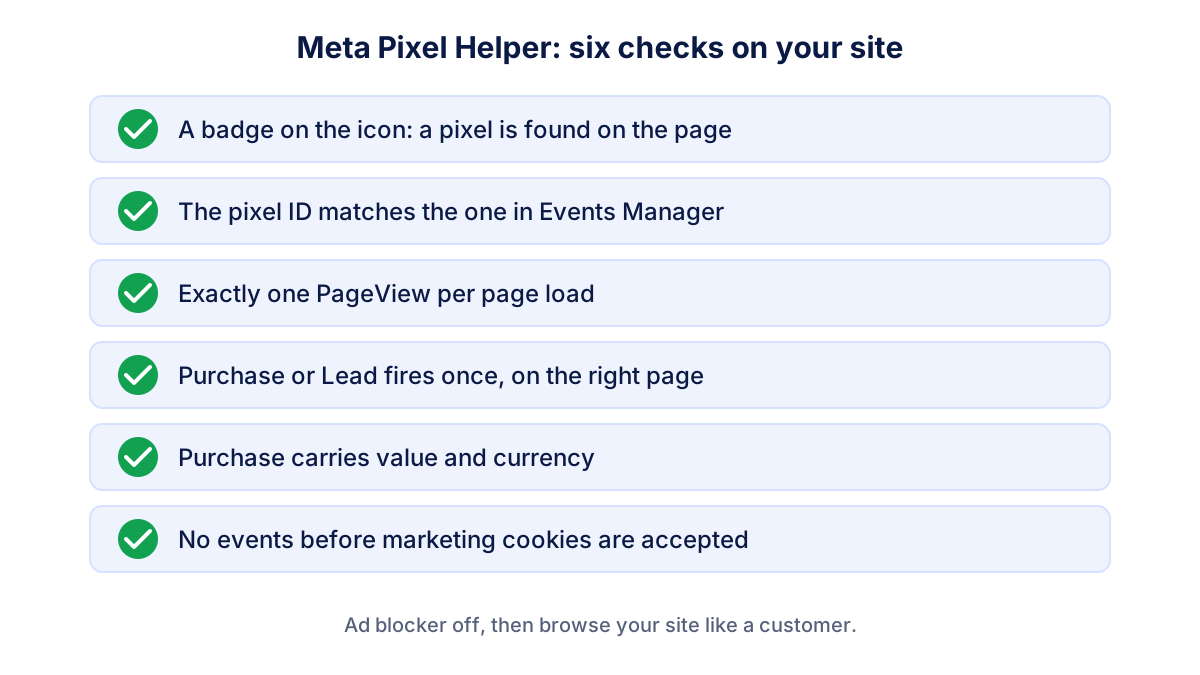
The extension marks the pixel and each event as active, warning or error. A warning is not always a disaster, but read it: Meta's page lists duplicate pixel code on the same page and the base code placed in the wrong part of the page among the common setup problems. The extension may not catch every button-click event, and it only sees what happens in your browser, not events sent from a server.
How to use Test events in Events Manager
Events Manager is where Meta shows everything it receives. Open it from the menu in Meta Business Suite or Ads Manager, select your pixel (or dataset) under Data sources and open the Test events tab.
For browser events, enter your website address and open it from the tab. As you click around, events appear in the list in real time. For server events, the developer sends test events with a code shown on the same tab; Meta's Conversions API documentation and Meta's help page on the tool say they should appear within about 30 seconds.
The Overview tab of the same pixel shows the events of the last days and how each one arrived (browser, server or both). It is the place to check, once a month, that Purchase or Lead is still coming in.
What is the Meta Conversions API?
The Conversions API sends the same events to Meta from your server or shop platform instead of from the visitor's browser. Think of it as a second line: if an ad blocker, a browser setting or a slow page stops the pixel, the server can still report the order.
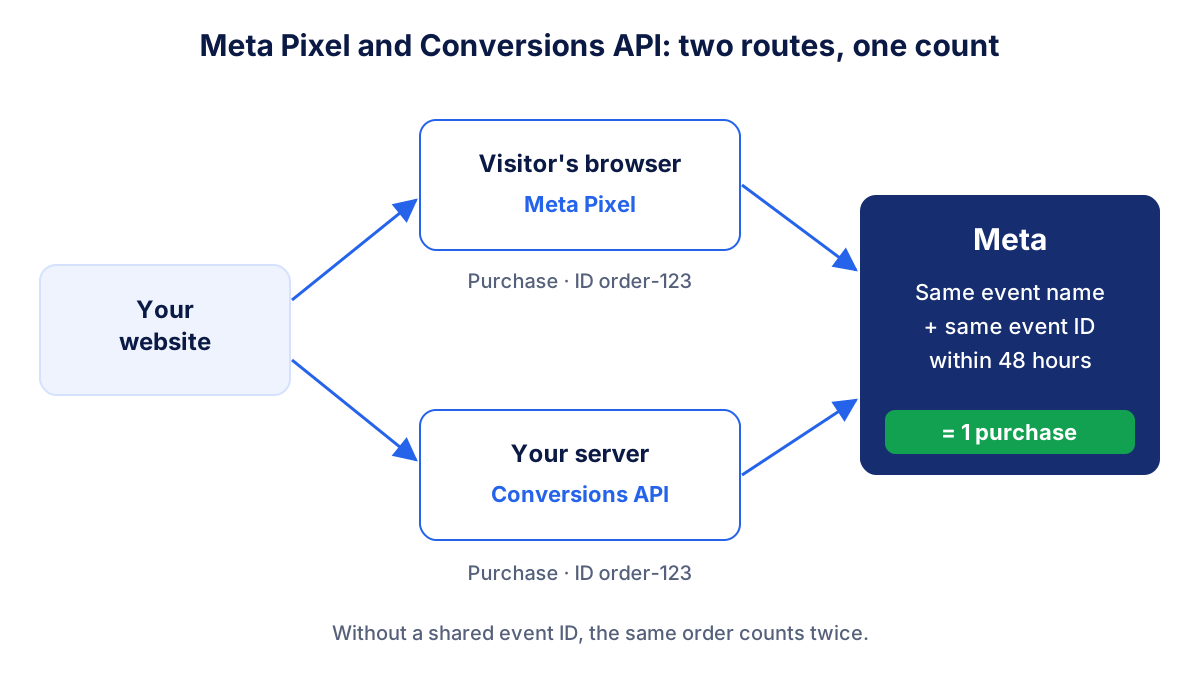
The two routes can report the same purchase twice, so Meta removes duplicates. According to Meta's page on deduplication, an event counts once when the pixel and the server send the same event name and the same event ID, within 48 hours. If the IDs are missing or different, both copies count.
For a small business, the practical route is usually the one built into your shop or website platform, or the setup Meta offers in Events Manager. You do not need to understand the code. You need to know whether it is on, and whether deduplication works.
Meta Pixel and cookie consent in the EU
In the EU, the pixel sets cookies and sends data about visitors to Meta for advertising. Under the GDPR and the ePrivacy rules this normally needs the visitor's prior consent. In practice: the pixel should fire only after the visitor accepts marketing cookies in your banner, and not at all if they decline.
Meta's GDPR implementation guide describes exactly this approach: hold the pixel back and release it once consent is given. Most consent tools and tag managers do it for you when the pixel is assigned to the marketing category.
Two consequences for your numbers. First, Meta will see fewer visits and conversions than really happened, in proportion to how many people decline cookies. Second, a pixel that fires before consent may give you more data but creates a legal risk. When in doubt, ask your privacy adviser, not your ad agency.
Common Meta Pixel problems
| Problem | What you see | Likely cause |
|---|---|---|
| Pixel fires twice | twice as many PageViews or purchases as orders | pixel installed by a plugin and by a tag manager |
| Purchase without value | purchases but no purchase value or ROAS | value and currency not passed |
| Purchase on reload | more purchases than orders | event fires each time the thank-you page loads |
| Wrong pixel | no events, or events in another account | old pixel ID from a previous agency |
| Wrong domain | events from staging or another site | pixel copied to a test site or a second domain |
| Nothing before consent | events only from some visitors | expected in the EU; check that it is not zero |
Compare the pixel with your real orders each month. If your shop shows 100 orders and Meta claims 140 purchases, part of the gap comes from attribution and view-through conversions, as explained in the guide to the Meta Ads report. A gap that suddenly doubles is usually a setup change.
What to ask your web developer or agency
You do not need to install the pixel yourself. You need clear answers to a few questions:
- Which pixel ID is on the site, and does it belong to our business portfolio?
- Which events are set up, on which pages, and with which parameters for Purchase or Lead?
- Is the pixel installed once, through one method (plugin, tag manager or platform integration)?
- Is the Conversions API active, and do pixel and server events share an event ID?
- Does the pixel wait for marketing cookie consent?
- Do our ad links carry UTM parameters, so GA4 can confirm what Meta reports?
Ask for a short test: one purchase or form in the Test events tab, with a screenshot. It takes ten minutes and saves months of misleading reports. Then judge the result with your conversion rate, not with Meta's numbers alone.
Klyrax does not install or manage the pixel. It reads your Meta Ads results in read-only mode, including the conversions the pixel reports, and shows them next to the orders or leads recorded in Google Analytics 4, so a sudden gap between the two stands out in the monthly summary.
Frequently asked questions
What is the Meta Pixel?
The Meta Pixel is a snippet of JavaScript that you add to every page of your website. It sends events such as PageView, Lead and Purchase to Meta, linked to a pixel ID. Meta Ads uses these events to report results, to optimize campaigns towards people likely to convert and to build audiences of past visitors. It was called the Facebook Pixel until the company renamed itself Meta.
Is the Meta Pixel Helper free?
Yes. The Meta Pixel Helper is a free browser extension from Meta for Google Chrome and Microsoft Edge. Meta now calls it Meta Ads Data Advisor (formerly Meta Pixel Helper), and existing installations update automatically. Basic checks work without logging in: it shows which pixels load on the page and whether each event was sent correctly or has a warning or error.
Why does the Meta Pixel Helper show no pixel on my site?
The most common reasons are an ad blocker that stops the pixel, a cookie banner where you have not yet accepted marketing cookies, or a pixel that was never installed on that page or domain. Disable the blocker, accept cookies, reload the page and look again. If the badge is still empty, ask your developer where the pixel code is supposed to load.
Do I still need the pixel if I use the Conversions API?
Meta presents the two as working together. The pixel sends events from the visitor's browser, the Conversions API sends events from your server or shop platform, and Meta removes duplicates when both carry the same event name and event ID. Many shop platforms and partner integrations set up both at once, which is usually the simplest route for a small business.
Can I use the Meta Pixel under GDPR?
In the EU, the Meta Pixel sets cookies and sends personal data to Meta for advertising, so it normally needs the visitor's prior consent through your cookie banner. In practice the pixel should fire only after the visitor accepts marketing cookies. Meta's own documentation describes holding the pixel back until consent is given. Ask your legal adviser or privacy consultant for the details that apply to your business.
See how your marketing is really doing
Klyrax connects GA4, Search Console, Google Ads, Meta Ads, your Google reviews and more in read-only mode, shows the numbers that matter for your business and writes you a plain-language report every month.
Request info