
YouTube Analytics is the reporting area inside YouTube Studio that shows how your channel and each video perform: how often YouTube showed your videos, how many people watched, for how long, and where they came from. For a business channel, a handful of these numbers answers the real question: is YouTube bringing you attention and visits from the right people?
This guide is written for a business that uses YouTube to explain products, show how things work or answer customer questions, not for creators chasing ad revenue. You will find where each report lives, what the main metrics mean, a worked example, a monthly dashboard and how to connect YouTube to your website.
What is YouTube Analytics?
YouTube Analytics is the free, built-in analytics tool of YouTube Studio. It is available to anyone who owns or manages a channel, and it covers the whole channel as well as every single video, Short and live stream.
Most YouTube Analytics guides focus on monetization, because many channels earn from ads. A business channel has different goals. You want the right people to find your videos, watch long enough to understand your offer, and then visit your site or contact you. Revenue reports are irrelevant here; reach, attention and traffic are what count.
Where to find YouTube Studio analytics
To open YouTube Analytics on a computer:
- Sign in to YouTube Studio with the account that manages the channel.
- Click Analytics in the left menu for channel reports.
- For one video, click Content in the left menu, point at the video and select Analytics.
- Use the date selector at the top right (for example "Last 28 days"), and the Advanced mode link to compare periods or videos.
The reports are organized in tabs. Google began rolling out an updated YouTube Studio in 2026, so the layout on your account may look slightly different, but the official YouTube Analytics help page describes these tabs:
| Tab | Level | What it shows |
|---|---|---|
| Overview | channel and video | summary of views, watch time and subscribers, realtime activity |
| Content | channel | impressions, how they turned into views and watch time, top content by type |
| Reach | video | impressions, impressions click-through rate, views, traffic sources |
| Engagement | video | watch time, average view duration, audience retention |
| Audience | channel and video | monthly audience, new and returning viewers, subscribers, demographics |
| Trends | channel | what viewers across YouTube are searching for |
| Revenue | channel and video | earnings, only for channels in the YouTube Partner Program |
The YouTube Analytics metrics that matter for a business
Out of dozens of numbers, these are the ones worth learning. Each definition below follows YouTube's help center.
| Metric | What it means | What it tells a business |
|---|---|---|
| Impressions | times your thumbnails were shown on YouTube | how much YouTube is offering your videos |
| Impressions click-through rate | share of impressions that led to a view | whether title and thumbnail attract the right clicks |
| Views | times your videos were watched | overall attention |
| Watch time (hours) | total time people spent watching | the strongest signal of real interest |
| Average view duration | average minutes watched per view | whether people stay long enough to get your message |
| Subscribers | net change in subscribers in the period | how many viewers want to see more |
| Traffic sources | where views come from (search, suggested, external) | which way of being found works for you |
| Audience retention | share of viewers still watching at each moment | where a video loses people |
| New and returning viewers | first-time viewers vs viewers who came back | whether you reach new people or keep the same audience |
Two details trip up many readers. Impressions only count thumbnails shown inside YouTube: embeds on your website and end screens are not included, as the help page on impressions explains. That is why views can be higher than impressions on a video you promote outside YouTube. The general meaning of the word is covered in our guide to impressions.
Also, the Audience tab now splits your monthly audience into new, casual and regular viewers. Casual viewers watched at least once a month for one to five months in the past year, regular viewers for more than six months. For a small business channel, a low share of regular viewers is normal.
From impressions to watch time: a worked example
The core of YouTube Analytics is a short chain: YouTube shows your thumbnail, some people click, and those viewers watch for a while. Each step has its own metric.
Views from impressions = impressions × impressions CTR
Watch time = views × average view duration
Suppose your channel, in one month, gets 20,000 impressions with an impressions CTR of 4%. That gives 800 views from impressions. Another 400 views come from outside YouTube, for example the video embedded on your product page, for a total of 1,200 views. With an average view duration of 2 minutes 30 seconds, watch time is 1,200 × 2.5 = 3,000 minutes, or 50 hours.
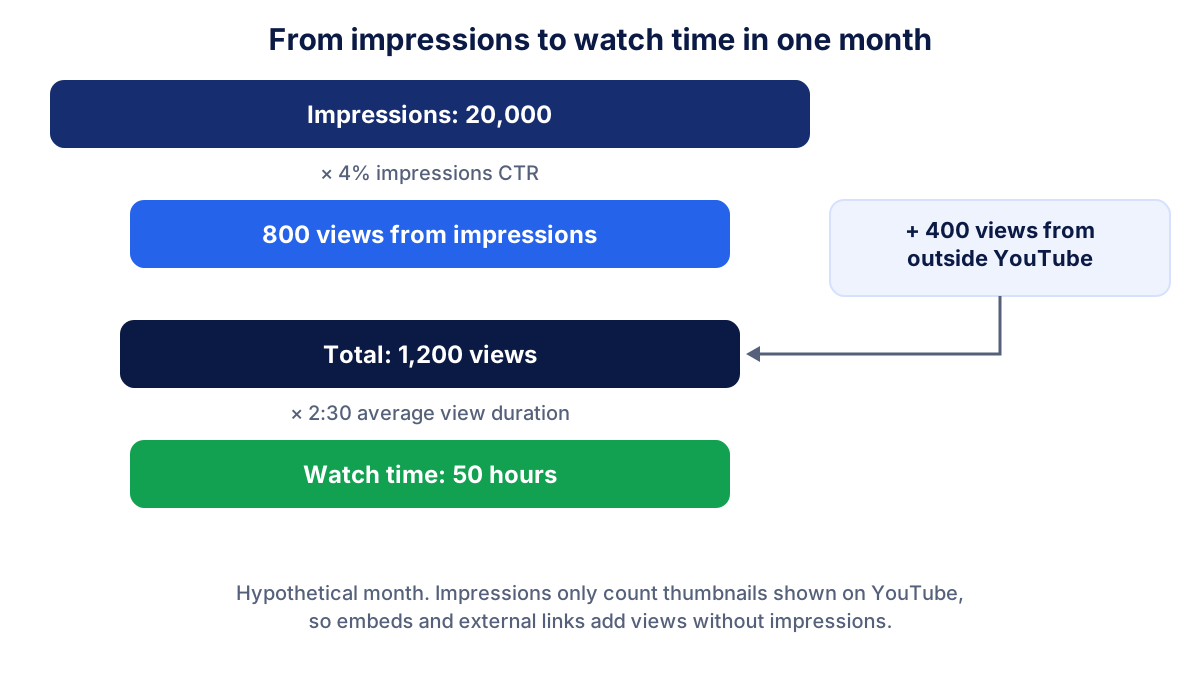
YouTube's help center says that half of all channels and videos have an impressions CTR between 2% and 10%. That is a wide range, and it depends on the topic, the audience and where the thumbnail appeared. A video shown on the home page of people who do not know you will have a lower CTR than one found through a precise search. For the logic behind click-through rates on other platforms, see the guide to CTR.
Read CTR and watch time together. A video with a high CTR but very short views often promises something in the thumbnail that the content does not deliver.
How to read audience retention
Audience retention is a curve: for each moment of a video, it shows the share of viewers still watching. It is a video-level report, found in the analytics of each video (Overview and Engagement tabs), and it usually takes a day or two to appear.
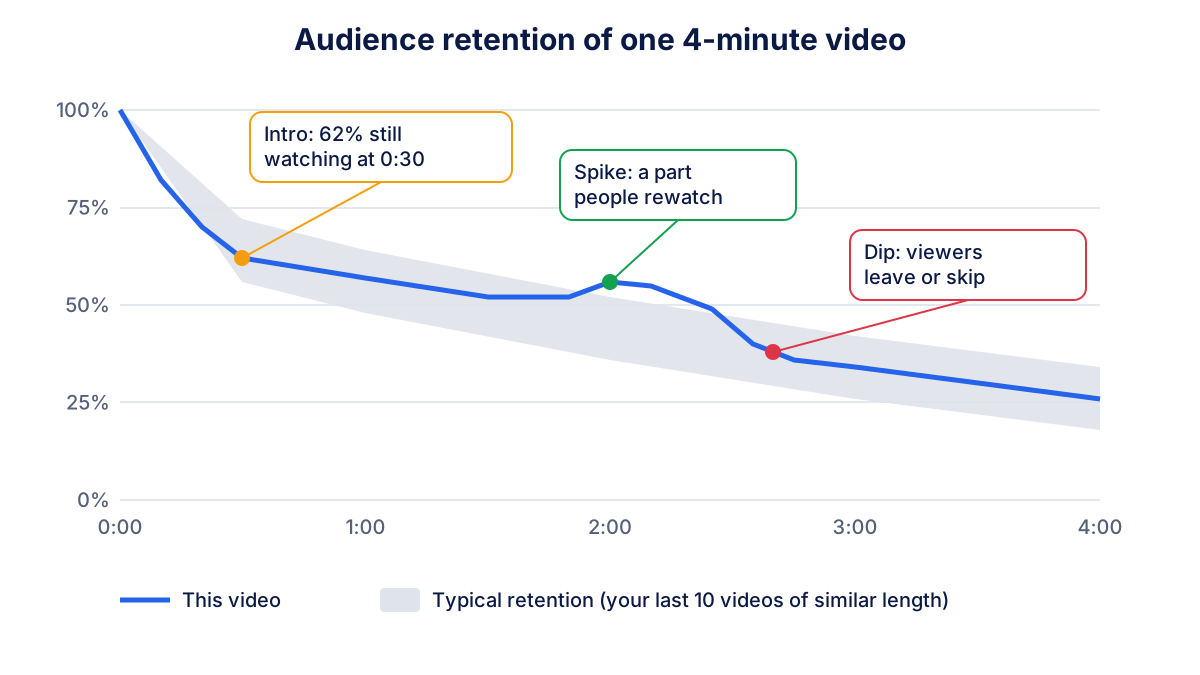
What to look for:
- The intro. YouTube shows how many viewers are still watching after the first 30 seconds. A steep drop there means the opening does not match the title or thumbnail.
- Spikes. The curve goes up when people rewatch or share a section. On a product video, that is often the part that answers the real question.
- Dips. A sudden drop marks the point where viewers leave or skip ahead, often a long digression or a slow demo.
- Typical retention. The gray area compares the video with your last 10 videos of similar length, which is a fairer benchmark than any industry figure.
YouTube highlights these key moments only on videos of at least 60 seconds with at least 100 views, according to the help page on audience retention.
Traffic sources: how people find your videos
The "How viewers find this video" card in the Reach tab splits views by source. The names YouTube uses are worth knowing:
- YouTube search: people typed a query and found your video. Strong for "how to" and product questions.
- Suggested videos: your video appeared next to or after another video.
- Browse features: home page, subscriptions feed and similar areas.
- External: websites and apps that embed or link to your video, including your own site.
- Direct or unknown: typed URLs, bookmarks, signed-out viewers and apps YouTube cannot identify.
- Playlists, Channel pages, Shorts, Notifications and YouTube advertising complete the list.
For most business channels, YouTube search and External are the sources to watch. Search tells you that people look for what you explain. External tells you that your website, newsletter or partners send viewers to your videos. The same logic applies to your website's own traffic sources.
A monthly YouTube dashboard for your business
A useful YouTube dashboard fits on one screen and answers one question: did YouTube bring us more attention and more visits than last month? Six tiles and two small tables are enough.
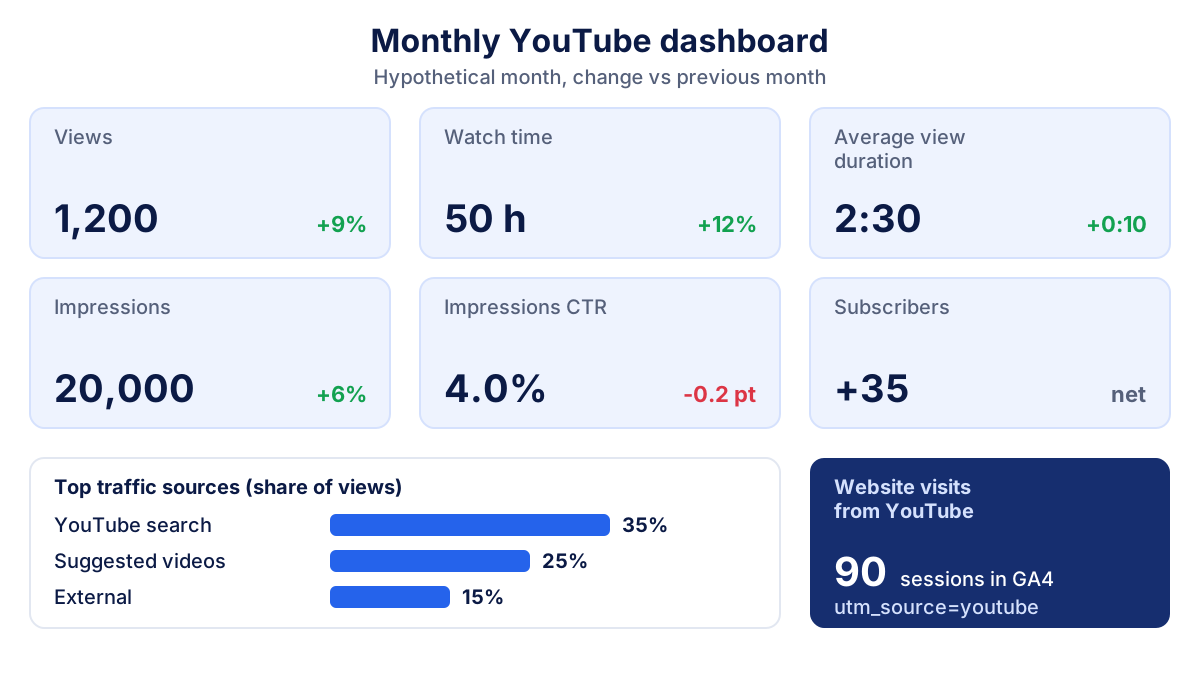
What to check once a month, always against the previous month:
- Impressions and impressions CTR. Is YouTube showing your videos more, and do people click?
- Views and watch time. Watch time matters more than views; 50 hours from 1,200 views says more than 3,000 views of 10 seconds.
- Average view duration of the videos published in the month, compared with your usual level.
- Subscribers gained and lost. Look at the net change, and at which videos brought new subscribers.
- Traffic sources. Did YouTube search or External grow?
- Visits to your website from YouTube, measured in Google Analytics 4 (next section).
- One retention curve: the best and the worst video of the month, to learn what to repeat.
Likes, comments and shares belong in the picture too, but they are small numbers on most business channels. If you want a single figure, the guide to engagement rate explains how to calculate one. For the bigger question of which numbers deserve a place in your reporting, see marketing KPIs.
Connecting YouTube to your website with UTM links
YouTube Studio tells you what happened on YouTube. What happens after a viewer clicks a link in the description is measured on your website. The simplest way to see it is to tag every link you place in a description with UTM parameters:
https://www.example.com/product?utm_source=youtube&utm_medium=video&utm_campaign=product_demo
When someone clicks that link, Google Analytics 4 records the visit with source "youtube" and medium "video". According to Google's default channel group rules, a medium containing "video" or a source on the list of video sites is grouped in the Organic Video channel. Use utm_campaign or utm_content to tell videos apart. Our guide to UTM parameters has a free link builder and naming rules.
In the example month, 90 sessions with source "youtube" in GA4 would mean that 90 of the 1,200 viewers visited your site from a description link. That figure, and the leads or sales that follow, is the real return of a business channel.
Common mistakes with YouTube Analytics
- Judging a channel by views alone. Thousands of very short views can bring less interest than a few hundred people who watch to the end.
- Comparing one video with the channel average. Shorts, long tutorials and live streams behave very differently. Filter by content type.
- Expecting impressions to match views. Embeds and external links bring views without impressions.
- No UTM tags in descriptions. Without them you cannot tell which video sent visitors to your site.
- Copying benchmarks. Ranges such as "2% to 10% CTR" describe all of YouTube, not your sector. Your last 12 months are a better reference.
Seeing YouTube next to your other channels
YouTube Studio is good at YouTube and blind to everything else. To see whether a video campaign moved your website traffic or your leads, you have to put the two side by side. Klyrax connects to YouTube in read-only mode, next to Google Analytics 4, Search Console and your ad accounts, so your channel's views and watch time appear in the same summary as your website, and the monthly report written on the 1st explains in plain language what changed.
Frequently asked questions
How do I see YouTube Analytics for my channel?
Sign in to YouTube Studio and click Analytics in the left menu. You get channel reports organized in tabs such as Overview, Content and Audience. For a single video, open Content in the left menu, point at the video and choose Analytics. The YouTube Studio app for phones shows the same data in a simpler layout, with some reports missing.
What is a good impressions click-through rate on YouTube?
YouTube's own help center says that half of all channels and videos have an impressions click-through rate between 2% and 10%. New videos and videos with very few views can sit outside that range. Compare each video with your own channel's usual rate instead of chasing a single target, and read CTR together with watch time.
Can I see YouTube Analytics for other channels?
No. YouTube Studio only shows full analytics for channels you own or manage. For other channels you can see public numbers such as subscriber count, views per video, likes and upload dates. Third-party tools estimate the rest from those public figures, so treat their watch time or revenue estimates as rough guesses.
How do I know how many website visits come from YouTube?
Measure them on your website, not in YouTube Studio. Put links with UTM parameters in your video descriptions, for example utm_source=youtube and utm_medium=video, and then look at the sessions with that source in Google Analytics 4. Without UTM tags, GA4 still sees YouTube as a source in many cases, but you cannot tell which video sent the visit.
How often should a business check YouTube Analytics?
Once a month is enough for most business channels, with a short look at each new video after its first week. Monthly numbers are steadier: one video can make a week look great or terrible. Compare each month with the previous one and, once you have a year of data, with the same month last year.
See how your marketing is really doing
Klyrax connects GA4, Search Console, Google Ads, Meta Ads, your Google reviews and more in read-only mode, shows the numbers that matter for your business and writes you a plain-language report every month.
Request info